Kindle guide
How to send an EPUB to Kindle (and keep the cover)
Published: October 2026 · By the EpubCoverChanger.com team
Quick answer
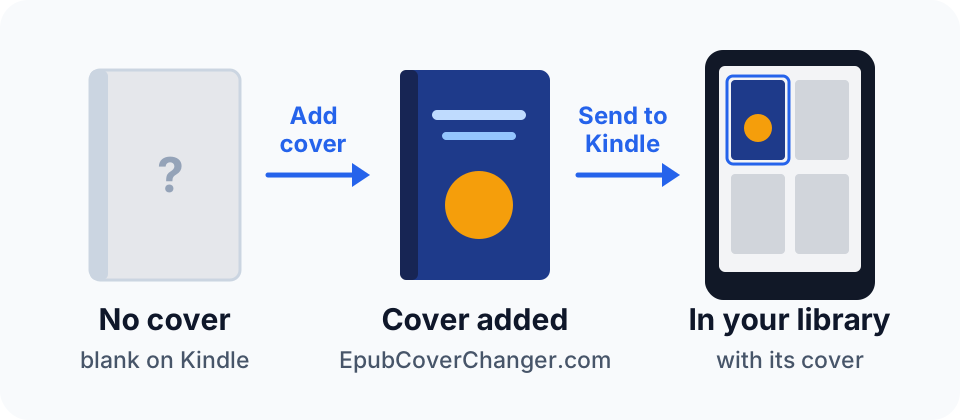
Kindle accepts EPUB files through Amazon's Send to Kindle service. The easiest way is the Send to Kindle web page: sign in, drop in your EPUB (up to 200 MB), and it appears in your Kindle library[1]. You can also email it, or share it from the Kindle app on iPhone and Android. Before sending, make sure the EPUB has a cover. If it doesn't, your Kindle shows a blank or generic thumbnail.
Ways to send an EPUB to Kindle
| Method | Size limit | Best for |
|---|---|---|
| Send to Kindle web page | 200 MB per file[1] | Any computer; large or illustrated books |
| Email to your Send to Kindle address | 50 MB per email, up to 25 files[2] | Sending several books at once |
| Kindle app on iPhone or Android (Share) | Not published by Amazon; use the web page for large files | Books saved on your phone |
| Send to Kindle app for Windows or Mac | 50 MB (reported in 2022)[4] | Right-click sending from your desktop |
Send to Kindle converts the EPUB into a Kindle format during delivery[3]. Copying an EPUB to a Kindle over USB does not work without converting it first; see using a USB cable instead.
Before you send: check the cover
Kindle shows the image the EPUB declares as its cover, and plenty of EPUBs don't declare one. Fanfiction downloads and files made with simple converters are common examples. Among people who used our tool between 7 and 14 October 2026, 125 of 265 (47%) uploaded at least one EPUB with no cover we could detect. That is not a figure for all EPUBs, since people often come to us because a cover is missing, but it shows how often this trips readers up.
To add or replace the cover, open EpubCoverChanger.com, choose your EPUB and a new cover image, pick the Amazon Kindle KDP (1600 x 2560) size, and download the updated file. It runs in your browser, so your book is never uploaded. If a cover still goes missing after sending, see how to fix missing Kindle covers.
Send an EPUB to Kindle with the web page (easiest)
- Go to amazon.com/sendtokindle and sign in with your Amazon account.
- Drag your EPUB into the upload box, or click to choose the file.
- Pick your Kindle library or the specific devices to send it to.
- Click Send. The book appears in your library after Amazon converts it.
Send an EPUB to Kindle by email
- Find your Send to Kindle email address on Amazon's Manage Your Content and Devices page, under Preferences, then Personal Document Settings.
- On the same page, add the address you'll send from to your Approved Personal Document Email List. Emails from other addresses are not delivered[2].
- Attach the EPUB and send. You can attach up to 25 files, 50 MB in total; zip larger batches[2].
Send an EPUB to Kindle from iPhone
- Install the Kindle app and sign in.
- Open the Files app, long-press the EPUB, tap Share, and choose Kindle. If Kindle isn't listed, tap More and turn it on.
- Confirm the send. The book is added to your Kindle library[1].
No cover yet? Open epubcoverchanger.com in Safari first, add the cover, tap Save or Open EPUB, and share the new file to Kindle from there.
Send an EPUB to Kindle from Android
- Install the Kindle app and sign in.
- In your Files or Downloads app, open the EPUB's share menu and choose Kindle.
- Confirm the send. Amazon lists iOS and Android among its Send to Kindle options[1].
Using a USB cable instead
Kindle e-readers can't open an EPUB copied over USB. If you prefer a cable, convert the book to AZW3 first, for example with calibre's free conversion tool[5], then copy the AZW3 file to the Kindle's documents folder. For most people, Send to Kindle is simpler and keeps the book synced across devices.
If the book doesn't arrive
- Emailed it? Check that the sending address is on your approved list. Amazon keeps trying to deliver for up to 60 days[2].
- Check the size against the limits in the table above.
- Make sure the EPUB is DRM-free. Store-bought books with DRM can't be sent this way.
- Rejected or garbled? See the causes and fixes in our Kindle cover and EPUB troubleshooting guide.
FAQ
Can you read EPUB books on Kindle?
Yes. Kindle devices and apps can't open an EPUB file directly, but once you send it with Send to Kindle, Amazon converts it and the book reads like any other Kindle book[1][3].
Do I need to convert EPUB to MOBI or AZW3 first?
No. Send to Kindle accepts EPUB directly and converts it for you[1][3].
Can I send several EPUBs at once?
Yes, by email: up to 25 attachments and 50 MB per email[2].
What size should the cover be for Kindle?
Amazon's ideal is 1600 x 2560 pixels. See our EPUB cover size guide for other stores.
Add a cover before you send
EpubCoverChanger.com adds or replaces EPUB covers in your browser, on desktop, iPhone or Android, and marks the cover so Kindle can find it.
Change your EPUB coverSources
- [1] Amazon: Send to Kindle (supported file types and the 200 MB upload limit)
- [2] Amazon Help: How to use the Send to Kindle email address
- [3] The eBook Reader: Send to Kindle apps for PC and Mac now support EPUB
- [4] Take Control Books: the Send to Kindle app's 50 MB limit (2022)
- [5] calibre User Manual: E-book conversion